

Electronic prescribing is an essential part of modern clinical workflows. For practices using OpenEMR, integrating an ePrescribing solution involves more than connecting to a prescription network. It also means giving clinicians a convenient way to prescribe medications without disrupting their existing workflow.
LogiCoy eRx integrates with OpenEMR through a dedicated module and ePrescribing APIs, connecting the OpenEMR clinical workflow to the LogiCoy ePrescribing backend. The API-based integration provides medication and pharmacy search, prescription entry, and a mechanism for reflecting prescriptions in OpenEMR’s native prescription records.
For OpenEMR administrators, implementation partners, and healthcare technology companies, the integration also provides a defined installation and configuration process, practice and prescriber registration, background message processing, and operational logging.
Whether you’re implementing OpenEMR for a new practice or evaluating alternatives to your current ePrescribing vendor, this guide explains how the LogiCoy eRx API integration works, what the implementation involves, and what to consider before getting started.
From Application Launch to API-Based ePrescribing
There are different ways to integrate electronic prescribing into an electronic health record (EHR). One approach is to launch a separate prescribing application from within the EHR. Another is to integrate prescribing functionality more deeply through APIs and an EHR-specific module.
LogiCoy supports the launch-in-context approach described in our existing OpenEMR eRx integration article. The API-based integration extends these options by providing a more integrated prescribing workflow within OpenEMR.
How do the two integration approaches differ?
| Capability | Launch-in-context integration | API-based integration |
|---|---|---|
| Prescribing experience | Opens the LogiCoy prescribing application in the patient context | Provides an integrated prescribing interface through the OpenEMR module |
| Medication and pharmacy selection | Performed in the launched application | Available in the integrated prescribing workflow |
| Integration approach | Launches the prescribing application from the patient record | Connects OpenEMR to the LogiCoy backend through ePrescribing APIs |
| Prescription records | Depends on the configured integration workflow | Supports writing prescriptions into OpenEMR’s native prescription records |
| Operational capabilities | Focuses on launching the prescribing application | Includes configuration, background processing, message synchronization, and operational logging |
Both approaches serve different integration needs. The API-based approach is particularly relevant to practices and OpenEMR implementation partners seeking a more integrated prescribing workflow.
The objective is simple: make ePrescribing a natural part of the OpenEMR workflow while keeping the underlying prescribing services connected to the LogiCoy backend.
How the OpenEMR–LogiCoy eRx API Integration Works
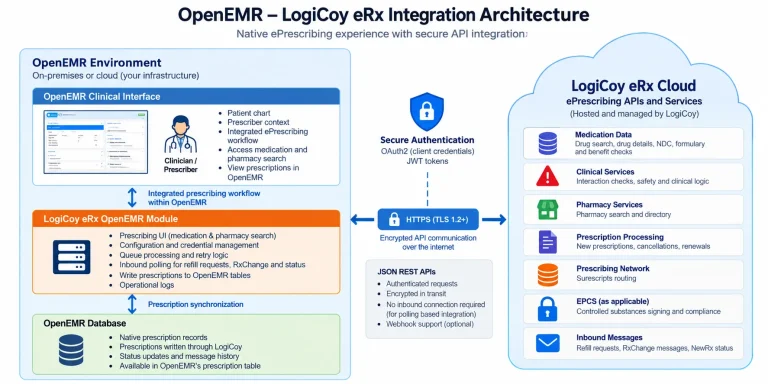
The integration uses a dedicated OpenEMR module as the connection between the clinical workflow and the LogiCoy ePrescribing backend.
Rather than implementing all the prescribing network’s clinical and routing logic inside OpenEMR, the module connects OpenEMR to the LogiCoy service. This keeps the integration focused on configuration, prescribing context, credential management, prescription synchronization, and message processing.
OpenEMR eRx integration architecture
- OpenEMR clinical interface — the clinician works in the patient chart and accesses the integrated prescribing workflow.
- LogiCoy OpenEMR module — handles integration configuration, credentials, queued messages, prescription synchronization, and operational logs.
- LogiCoy eRx APIs and backend — provides ePrescribing capabilities, including drug data, interaction checks, formulary and benefit checks, prescription routing, and EPCS signing as applicable to the configured service.
- Prescription and message synchronization — prescriptions can be reflected in OpenEMR’s native prescription records, while supported inbound messages and status information are processed through the configured integration.
Key components of the integration
- OpenEMR module: the integration point within OpenEMR. It handles configuration, credential management, prescribing context, queued messages, and prescription synchronization.
- LogiCoy eRx APIs: the module communicates with the LogiCoy backend using authenticated API requests over HTTPS. The backend provides the ePrescribing services, including medication data, interaction checks, formulary and benefit checks, routing, and EPCS signing as applicable.
- Prescription synchronization: the module can write prescriptions created through LogiCoy into OpenEMR’s native prescription records, helping keep the EHR’s prescription information aligned with the prescribing workflow.
- Background message processing: prescription traffic is queued for background processing rather than requiring every backend operation to complete during the clinician’s screen interaction. The module also supports inbound polling for refill requests, RxChange messages, and NewRx status.
These components address both sides of an EHR integration: the clinician-facing prescribing experience and the operational requirements of connecting an EHR to an ePrescribing service.
A More Seamless Prescribing Workflow
The benefits of an integrated ePrescribing workflow become clearer when we look at how a clinician uses it.
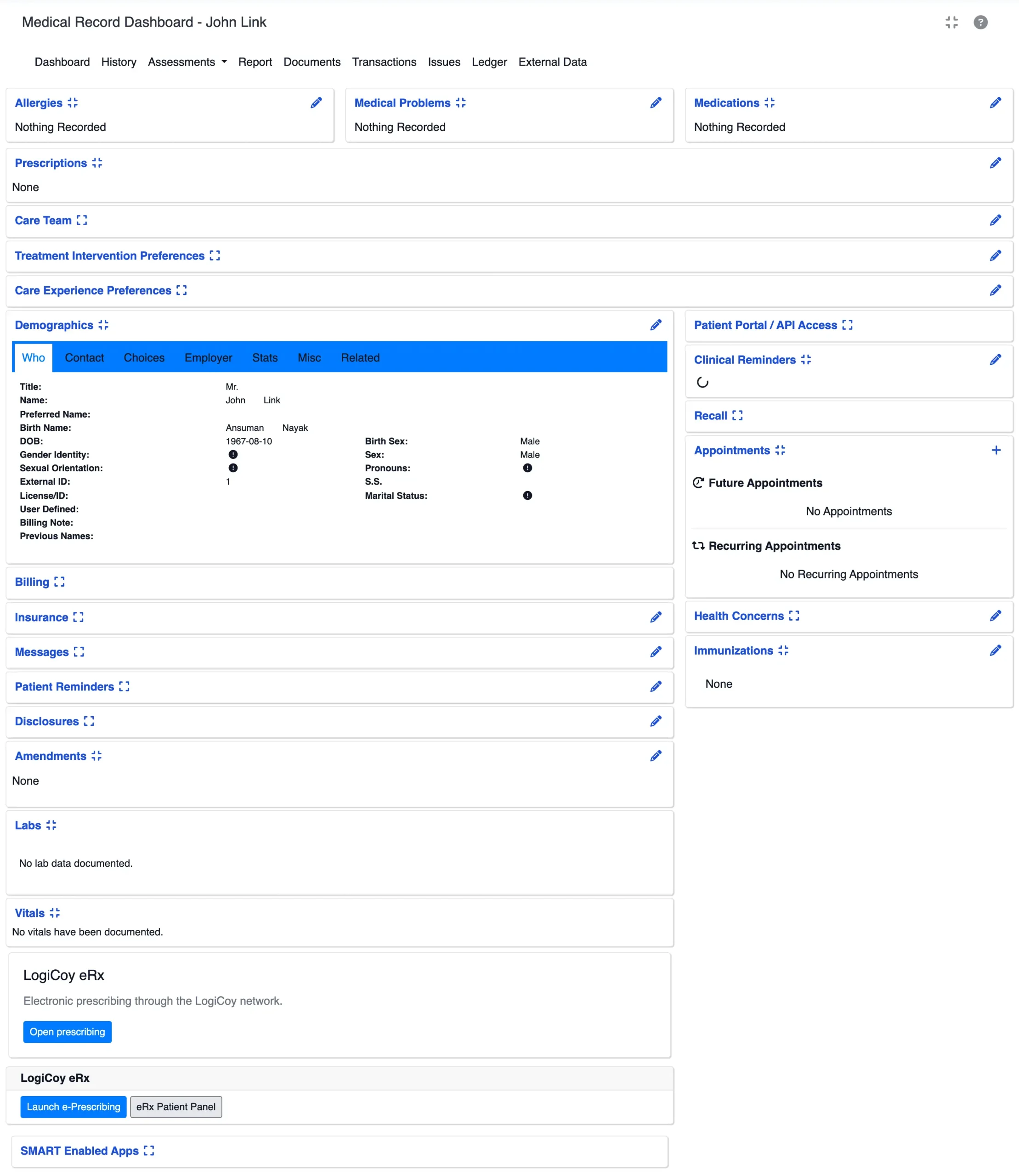
Step 1: Start from the patient context
The clinician opens the relevant patient record in OpenEMR and accesses the integrated LogiCoy prescribing workflow. Starting from the patient context helps clinicians work within their existing EHR environment rather than navigating to an unrelated application.
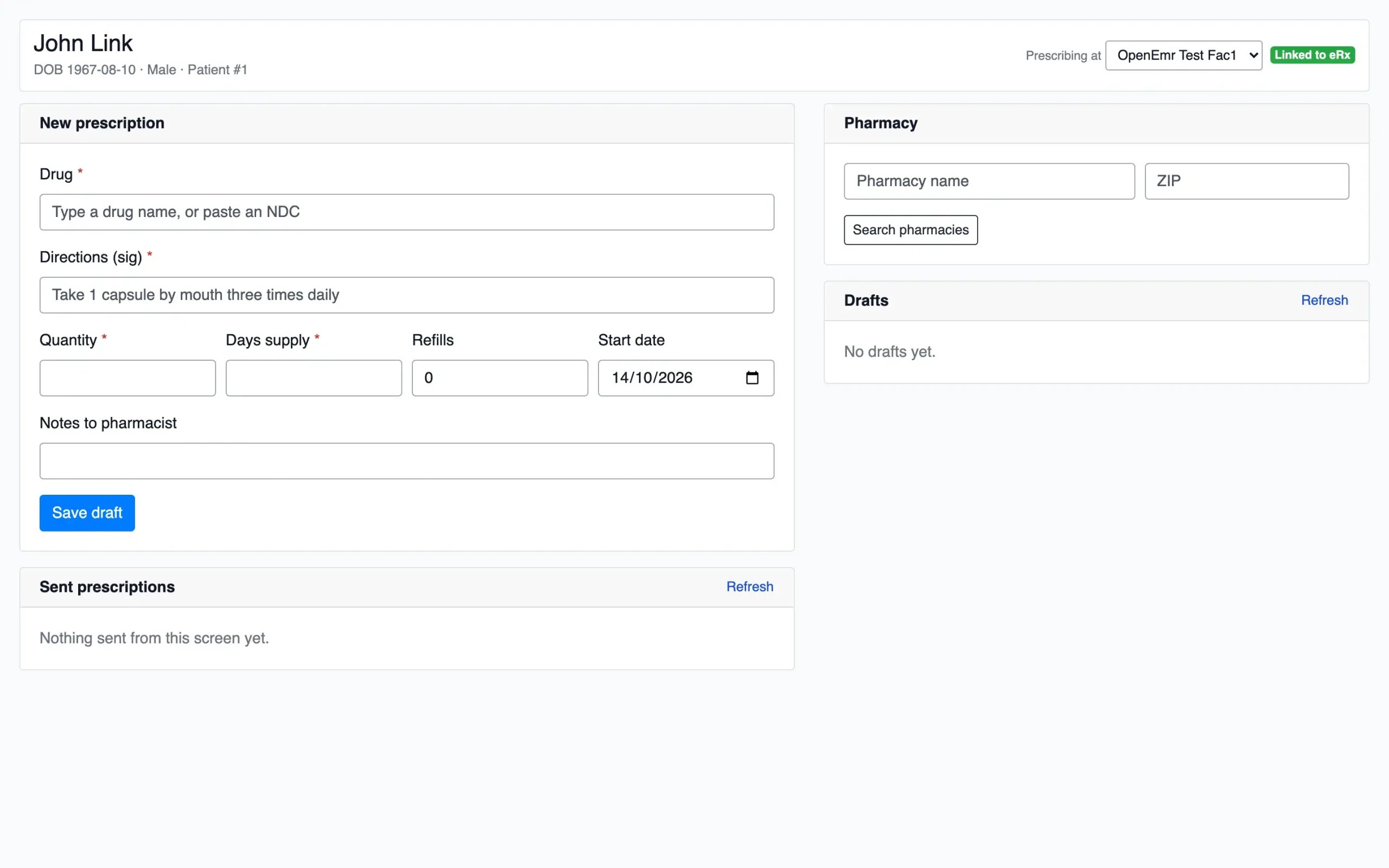
Step 2: Search for and select a medication
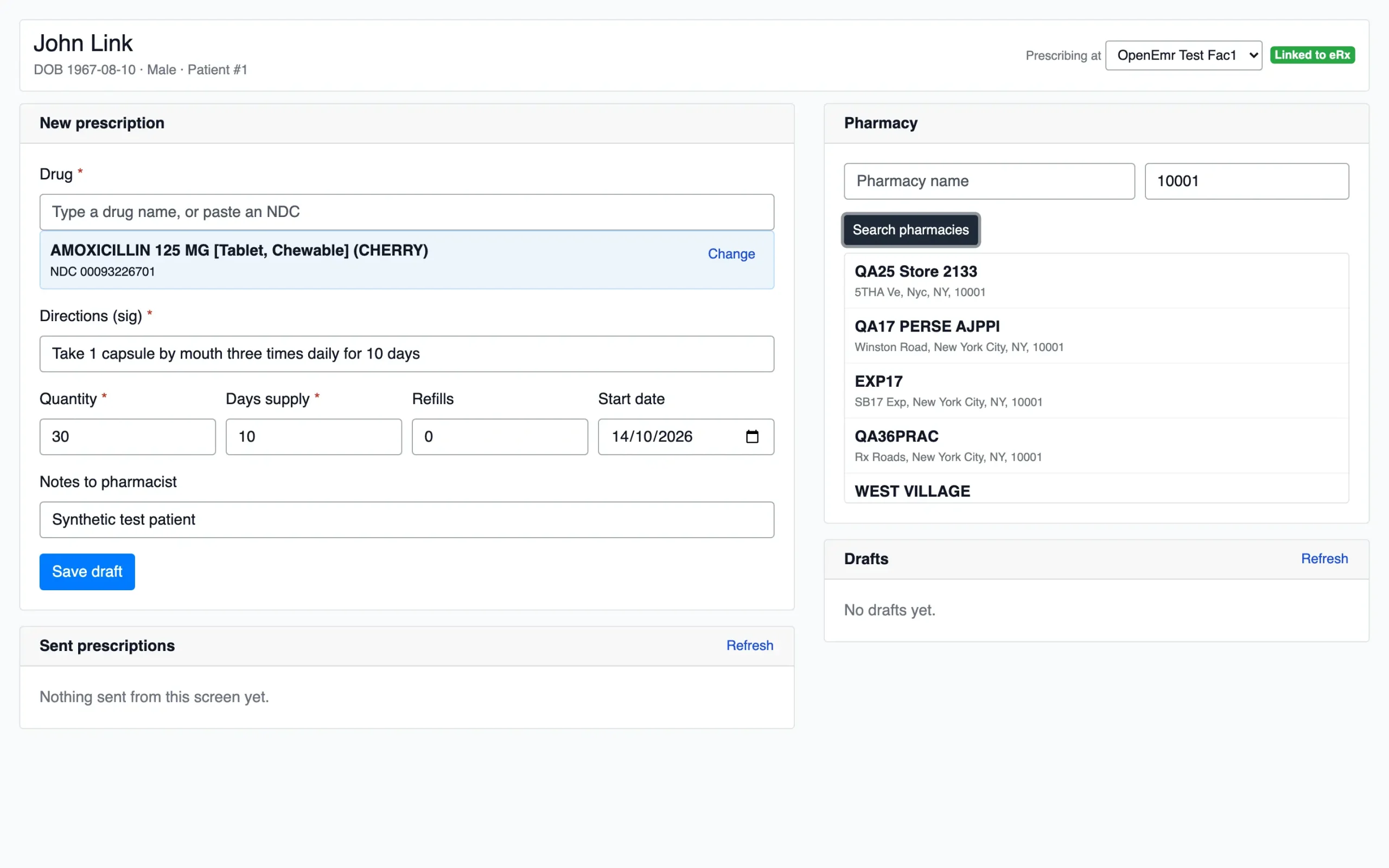
The clinician searches for the required medication and reviews the available results. Depending on the search, results can include medication strength, dosage form, manufacturer, and National Drug Code (NDC). This provides a practical way to identify the intended drug product before completing the prescription details.
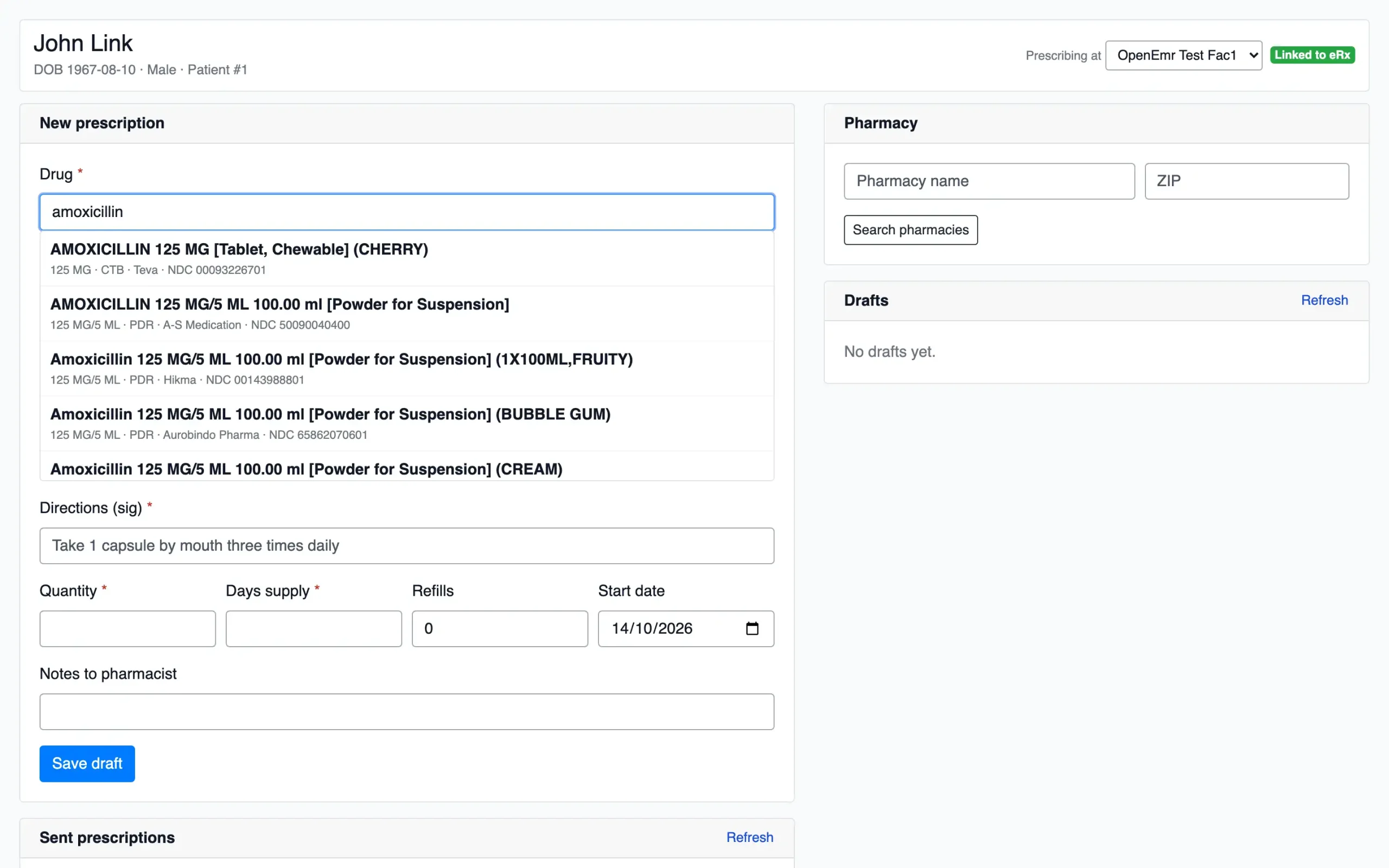
Step 3: Select the destination pharmacy
The clinician searches for a pharmacy using the available search fields and selects the appropriate destination. Keeping pharmacy selection within the prescribing workflow reduces the need for a separate navigation step solely to locate a pharmacy.
Step 4: Complete the prescription details
After selecting the medication and pharmacy, the clinician enters the prescription instructions, quantity, days supply, refills, start date, and any relevant notes to the pharmacist. The interface also provides a draft workflow, allowing prescription details to be saved before proceeding with submission.
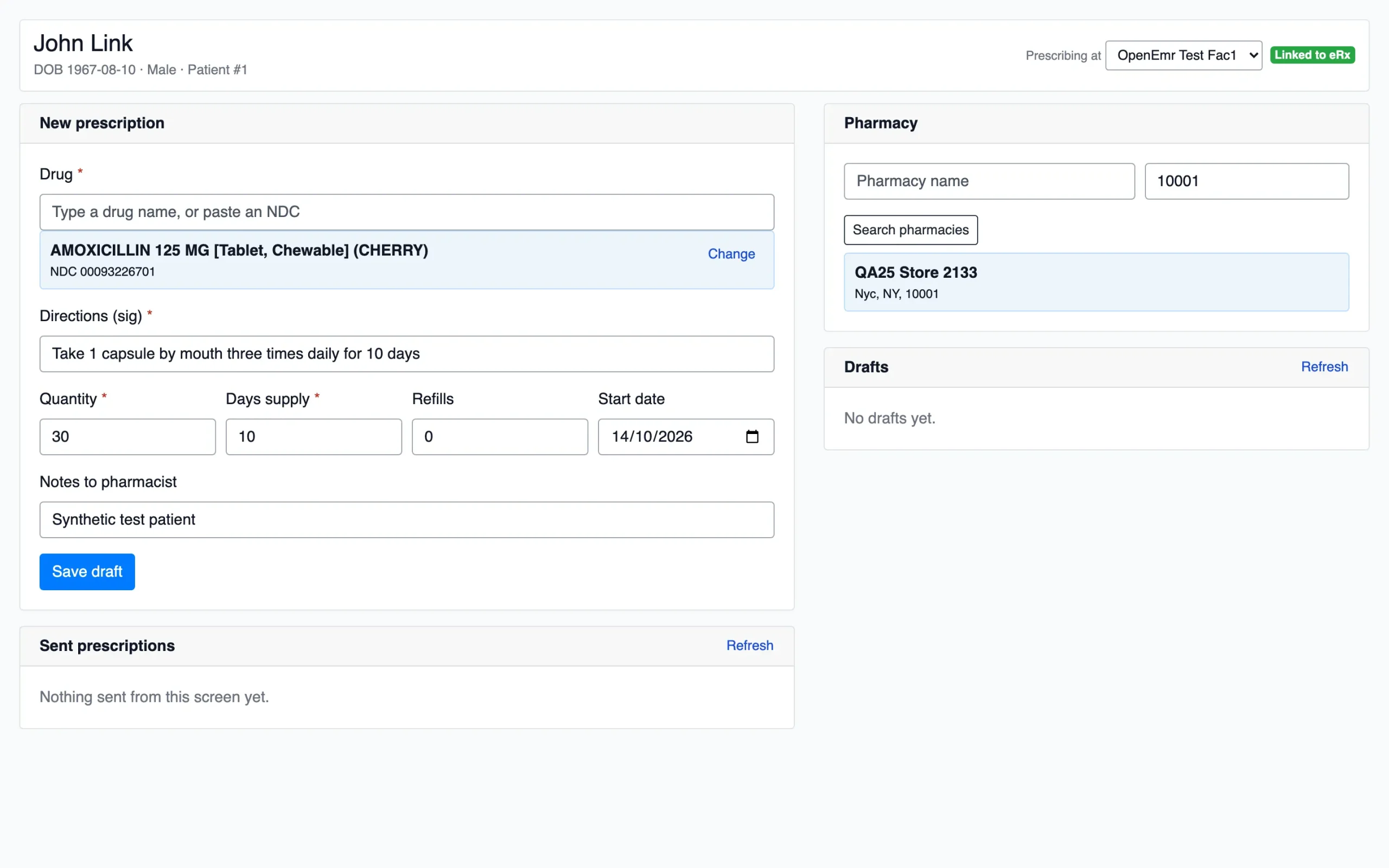
Together, these steps illustrate the practical advantage of a more integrated prescribing workflow: medication selection, pharmacy lookup, and prescription entry can take place within the same interface, with less need to switch between applications.
Installation and Configuration: A Defined Deployment Process
A successful EHR integration must be practical to deploy and maintain, not just convenient for clinicians.
LogiCoy eRx for OpenEMR is distributed as a dedicated module with an installation and configuration process for practice administrators and system administrators.
The September 2026 setup guide documents OpenEMR 7.0.0 or later and PHP 8.1 or later, with module version 1.0.6 verified against OpenEMR 8.2.0. Confirm the supported versions for the module release you plan to deploy.
Installation at a glance
Step 1: Install the module files. Run the supplied installer on the OpenEMR server. The installer locates the installation, checks the environment, places the module files, and configures the required ownership and permissions. Example command for the documented module version:
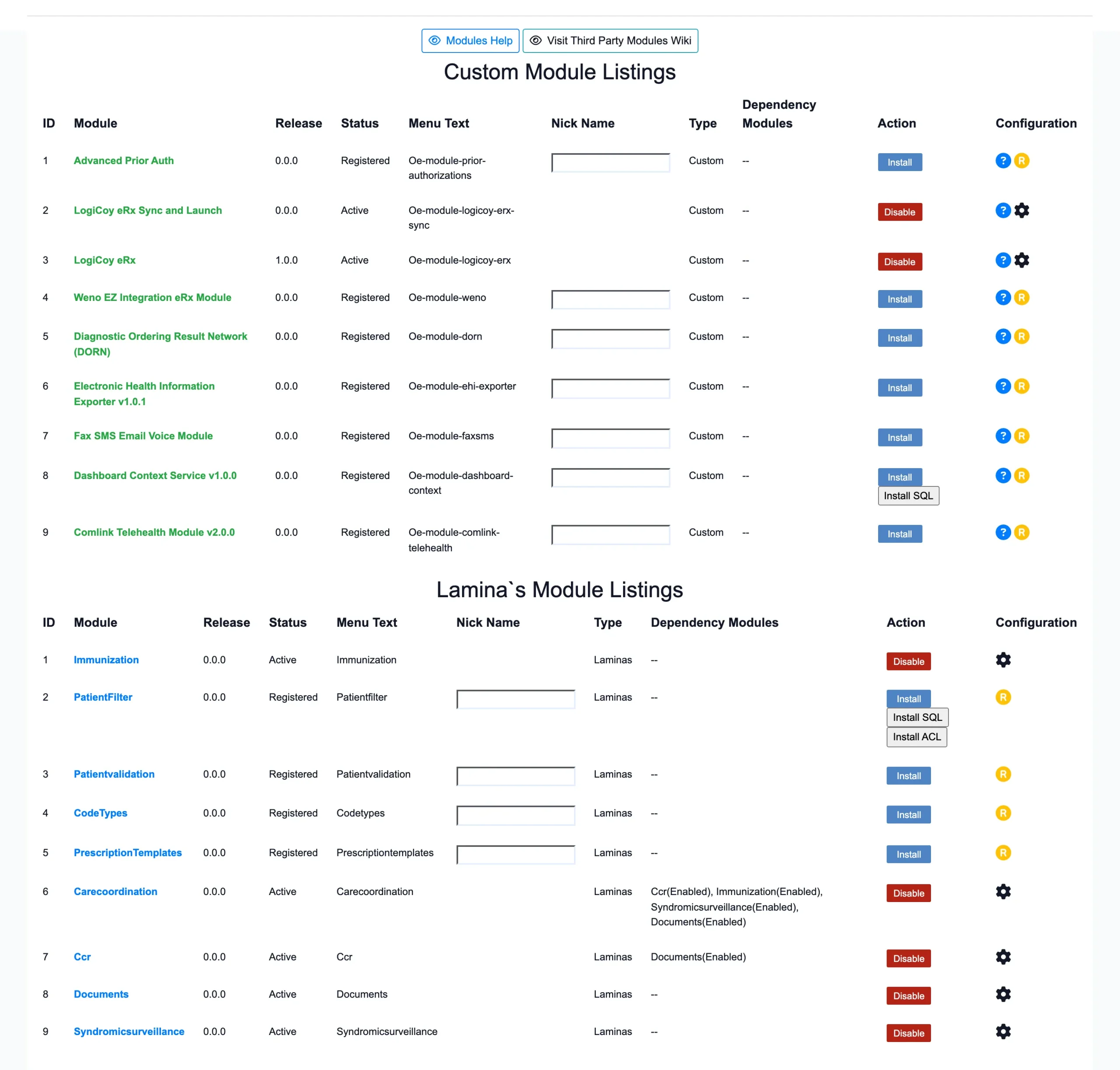
sudo sh install-oe-module-logicoy-erx-1.0.6.shStep 2: Register, install, and enable the module. In OpenEMR, navigate to Modules → Manage Modules, then register, install, and enable LogiCoy eRx. Enable the module in its Globals settings as documented.
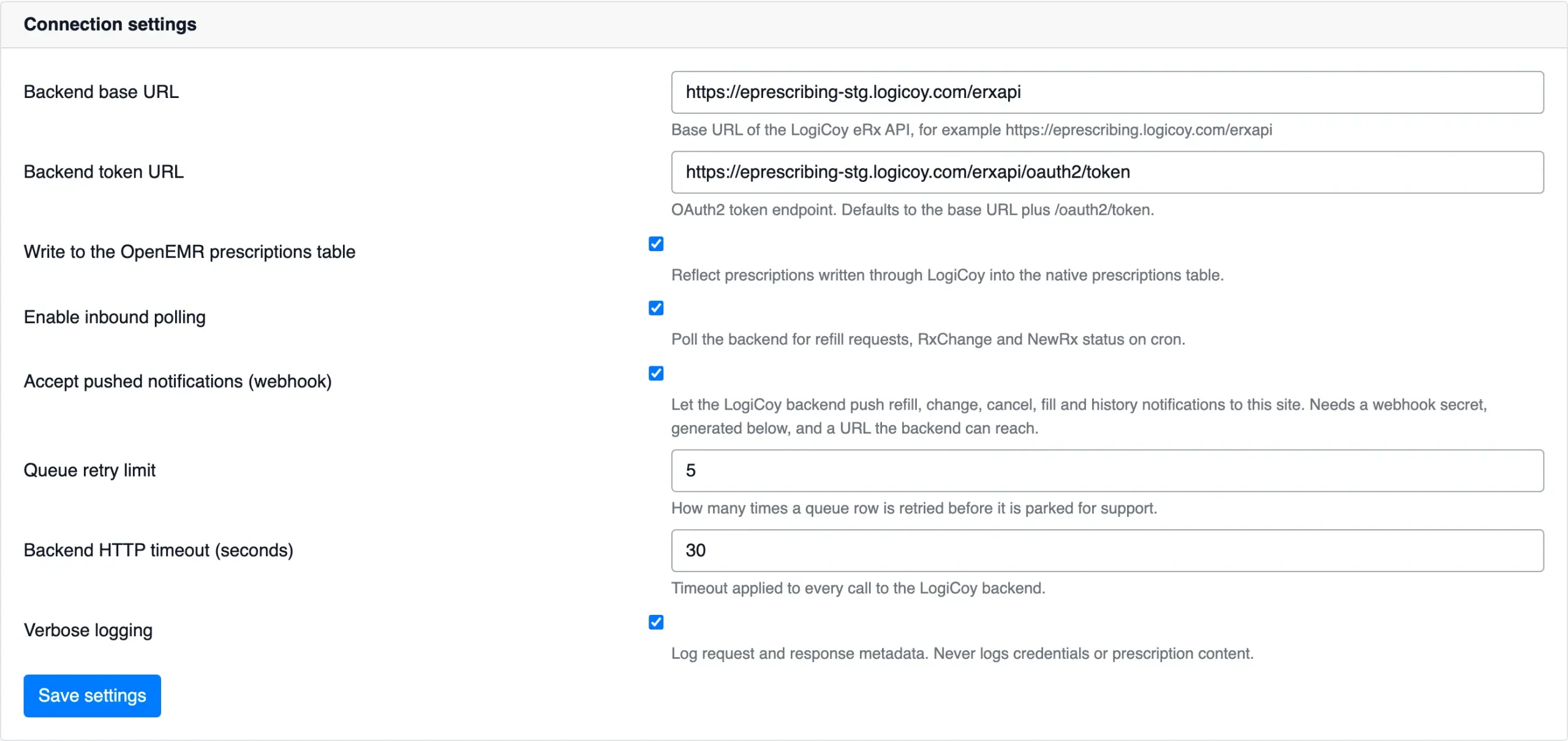
Step 3: Configure backend connectivity. Enter the LogiCoy API base URL and configure the available connection, timeout, retry, and inbound-processing settings required for the deployment.
Step 4: Load credentials and configure prescribers. Load the practice credential and signing key, complete the required prescriber details, and register the practice, service location, and individual prescribers with LogiCoy.
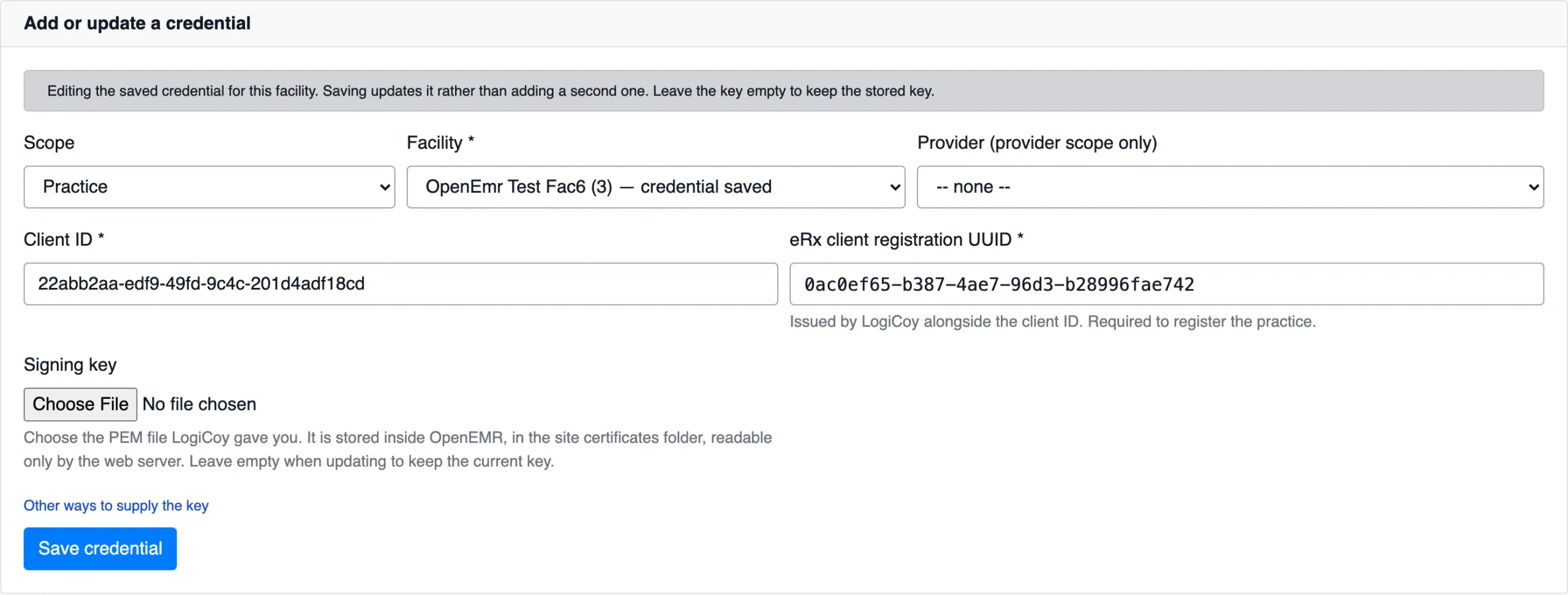
Step 5: Configure background processing and verify. Configure the scheduled queue worker, verify that the module is accessible from the patient chart, and test the prescription workflow using a test patient.
What administrators need before installation
- A supported OpenEMR and PHP environment.
- Shell access to the OpenEMR server and appropriate administrator permissions.
- Outbound HTTPS connectivity to the LogiCoy backend.
- A working cron scheduler for the queue worker.
- A complete facility record and the required prescriber information.
- The onboarding package supplied by LogiCoy.
For Docker deployments, the module directory must be persisted appropriately so that container rebuilds do not remove the installed module. The setup guide provides additional details for containerized and manual installations.
The result is a structured integration process with defined prerequisites, configuration steps, and verification procedures. For broader integration options, see the LogiCoy application integration services.
Prescription Synchronization, Reliability, and Troubleshooting
Integrating an ePrescribing service requires more than sending a prescription request. The system must also handle message processing, retries, status updates, and operational errors. The LogiCoy OpenEMR module includes a background queue mechanism to support these requirements.
Why background processing matters
Network calls can experience delays or temporary failures. By queuing prescription traffic for background processing, the integration avoids making every backend operation dependent on an immediate response during the clinician’s screen interaction. The scheduled worker processes queued messages and polls the LogiCoy backend for inbound messages. The module also uses message identifiers to help prevent duplicate processing when messages are replayed or the worker runs concurrently.
The documented operational features include:
- Queue retries: failed messages can be retried up to the configured limit.
- Duplicate protection: message identifiers help prevent duplicate processing.
- Inbound processing: the module polls for refill requests, RxChange messages, and NewRx status.
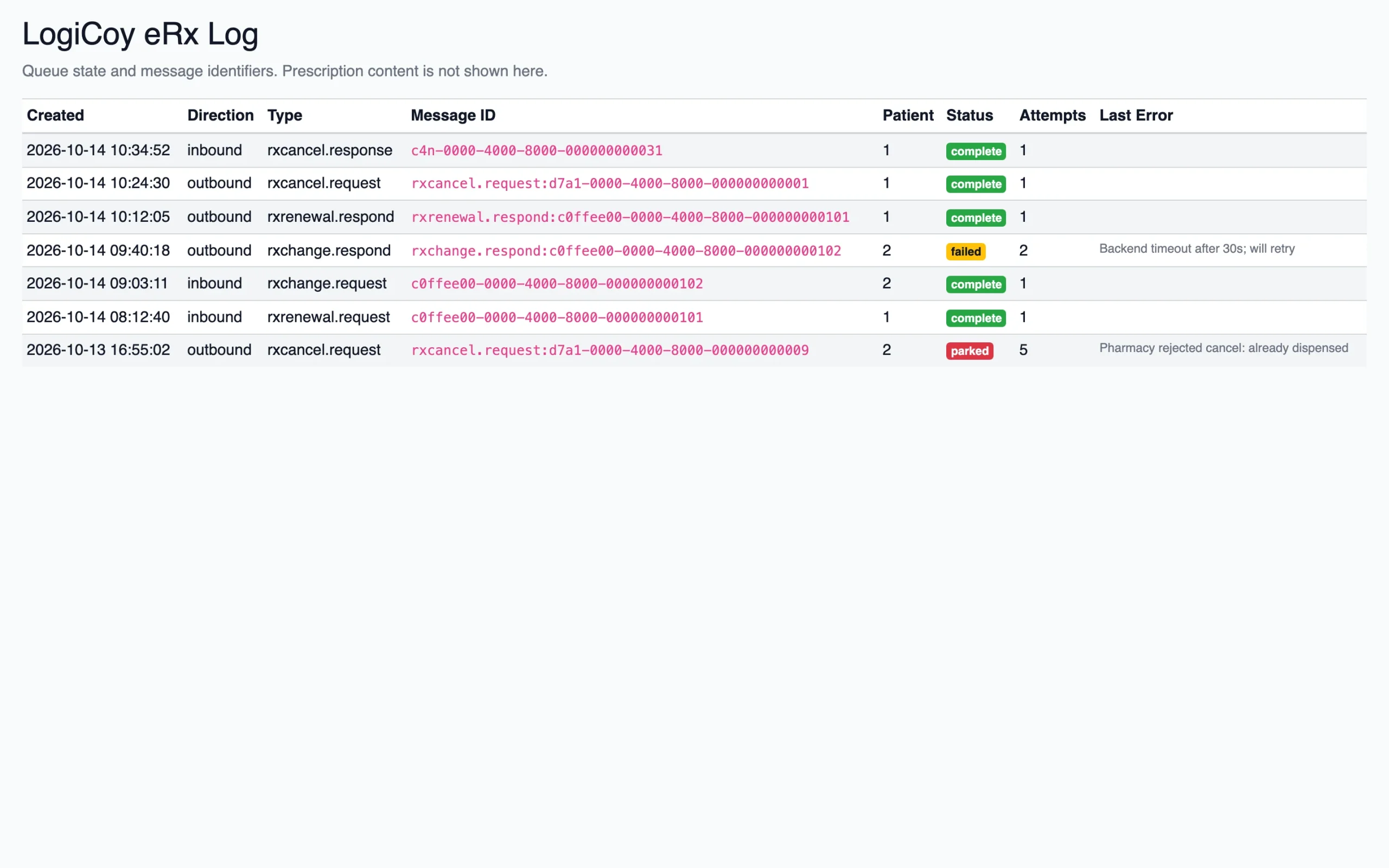
- Operational logging: administrators can inspect message direction, type, status, attempts, and relevant errors.
- Troubleshooting: failed or parked messages can be investigated without exposing prescription content in the module log.
These mechanisms are important when an integration needs to operate consistently beyond a demonstration environment.
Monitoring message processing
The LogiCoy eRx Log provides an operational view of queue activity. Administrators can use it to investigate connectivity issues, failed processing attempts, and messages that require support.
Credential Management and Deployment Considerations
A production integration must account for credential protection, network connectivity, and environment-specific deployment requirements. The LogiCoy module’s documented configuration includes several relevant controls.
- Credential handling: the setup guide documents encrypted storage of the signing key using OpenEMR’s key material. The key is not displayed again after it has been saved.
- Network connectivity: the OpenEMR server requires outbound HTTPS connectivity to the configured LogiCoy backend. The documented polling-based setup does not require an inbound connection.
- Prescriber registration: required prescriber information must be completed before registration. EPCS prescribers have additional DEA-related and identity fields to complete.
- Deployment persistence: for Docker installations, the module directory and credential storage must be handled appropriately to survive container rebuilds.
- Operational logging: the module log provides message-processing information without displaying prescription content. Configure verbose logging according to the deployed version’s guidance and operational requirements.
These are implementation considerations rather than a substitute for a full security assessment. Practices should review their deployment, access controls, and applicable privacy and regulatory requirements before going live.
Flexible ePrescribing Options and Pricing
The integration approach is only one part of evaluating an ePrescribing solution. Practices must also consider provider count, prescribing requirements, onboarding, implementation effort, and ongoing service costs.
LogiCoy works with organizations evaluating ePrescribing requirements for their EHR and clinical workflows. Pricing discussions can take into account the scope of the integration and the services required. When evaluating the cost of an OpenEMR eRx integration, consider:
- Provider count: how many prescribers need access?
- EPCS requirements: do any prescribers need electronic prescribing of controlled substances?
- Integration scope: which prescribing and message workflows need to be supported?
- Implementation: what configuration, onboarding, and testing are required?
- Ongoing costs: what recurring service charges and support arrangements apply?
If you already use another ePrescribing vendor, compare your existing arrangement with the proposed LogiCoy integration, including recurring charges and implementation costs. For a broader discussion, see our guide on ePrescribing costs and total cost of ownership.
The goal is to identify an approach that fits your clinical workflow and technical requirements—not simply to compare subscription prices in isolation.
Getting Started with LogiCoy eRx for OpenEMR
A well-integrated ePrescribing solution should work for both the clinicians using it and the technical teams responsible for implementing and maintaining it.
LogiCoy eRx provides an API-based integration approach for OpenEMR, combining a prescribing interface designed for the OpenEMR workflow with a dedicated module for backend connectivity, configuration, prescription synchronization, and message processing.
Whether you’re deploying OpenEMR for a new practice, implementing it for multiple providers, or evaluating an alternative to your current ePrescribing vendor, the first step is to understand your requirements and review the integration with your technical team. You can explore the integration options and developer documentation on the LogiCoy eRx integrations page or try the vendor portal and sandbox.
Ready to explore LogiCoy eRx for OpenEMR? Request a technical walkthrough or contact info@logicoy.com to discuss integration requirements and pricing.
Frequently Asked Questions
What is LogiCoy eRx for OpenEMR?
LogiCoy eRx for OpenEMR is an integration that connects OpenEMR to the LogiCoy electronic prescribing backend through a dedicated OpenEMR module and ePrescribing APIs. It supports medication and pharmacy search, prescription entry, and synchronization with OpenEMR’s prescription records.
How does the LogiCoy eRx API integration differ from launching a separate prescribing application?
The launch-in-context approach opens the LogiCoy prescribing application from the OpenEMR patient record. The API-based approach uses a dedicated OpenEMR module to provide a more integrated prescribing workflow and support prescription synchronization and background message processing.
Does LogiCoy eRx write prescriptions into OpenEMR?
Yes. The module includes a configuration option to write prescriptions created through LogiCoy into OpenEMR’s native prescription table.
What are the installation requirements?
The September 2026 setup guide documents OpenEMR 7.0.0 or later and PHP 8.1 or later, with module version 1.0.6 verified against OpenEMR 8.2.0. Installation also requires server access, outbound HTTPS connectivity, a working cron scheduler, and the required practice and prescriber credentials.
Does the integration require inbound network access to the OpenEMR server?
The documented polling-based setup requires outbound HTTPS connectivity from the OpenEMR server to LogiCoy and does not require an inbound connection for polling. If pushed notifications are enabled, the webhook configuration and network reachability requirements must be evaluated separately.
Does LogiCoy eRx support EPCS?
The setup guide documents configuration for both non-controlled-substance ePrescribing and Electronic Prescribing of Controlled Substances (EPCS). EPCS requires additional prescriber information and the applicable service configuration.
